Tutorial
0. Getting Started
1. Account Creation and Initialization
2. Set up the domain and link with employee master data
3. Cost Management Setup
4. Integrating SaaS
5. Setup Billing
Inviting other users
What's New
SaaS Integration Guide
List of supported SaaS
1Password
AKASHI
AWS IAM Identity Center
Acall
Active! gate SS
ActiveCampaign
Adobe CC (Enterprise plan)
AirCourse
Airtable
Akerun
Amazon Business
Amazon Web Services (AWS)
Amplitude
Amptalk
Apollo
App Store Connect
AppFigures
Appfollow
AppsFlyer
Asana
Ashita_cloud
Atlassian
Autify
Autodesk(Suspended)
Awesome Screenshot
Backlog
BambooHR
Basecamp
Bigin by Zoho CRM
Bitbucket
Bitdefender
Bitrise
Bitwarden
Biz Storage fileshare
BlazeMeter
Board
Box
Brabio!
Businessmap
CLOMO
Cacoo
Calendly
Call Connect
Canny
Canva
Channel
ChatGPT for teams
Chatwork
CircleCI
Cisco Duo
Cisco Meraki
Cisco Umbrella
Claude.AI
ClickUp
Clip Studio
Clockify
Cloud CIRCUS
Cloud Campus
Cloud sign
CloudGate UNO
Cloudflare
Cloudflare Zero Trust
Codecov
CoderPad
Collaboflow
Confluence
Contentful
ContractS CLM
Convi.BASE
Coopel
Craft
Create! Web Flow
Crowdstrike
Cursor
Cybermail
Cybozu
Datadog
DatoCMS
DeepL
DeployGate
Dialpad
DirectCloud
Discord
DocSend
Docbase
Docker
DocuSign
Domo
Drata
Dropbox Business
Dropbox Sign
Dynatrace
Easy settlement
Elastic Cloud
Emergency Call
Envoy
Esa
Exment
Expensify
FastAnswer2
Fastly
Favro
Figma
FileForce
Fivetran
Float
Flyle
Fontworks
Formrun
Formspree
FreshBooks
Freshcaller
Freshchat
Freshdesk
Freshservice
Front
GMO Sign
Ganttpro
Garoon
Gather
Genesys Cloud
Ghost
GigaCC
Ginger
GitHub
GitKraken
GitLab
Google Ads
Google Cloud Platform
Google Drive with Service Account
Google Play Console
Google Tag Manager
Google Workspace
Grafana Cloud
GrooveHQ
HENNGE One
HERP Hire
HRBrain Talent Management
HRMOS Talent Management
HRMOS adopts
HRMOS diligence and indolence
HackMD
HaloPSA
Heap
Heroku
Honeybadger
Honeycomb
HotProfile
HubSpot
Hubble
Hubble (SCIM)
Huntress
ISM CloudOne
InVision
Intercom
Jamf
JetBrains
Jibble
Jicoo
Job Can Recruitment Management
Job Kan Attendance Management
Job Kan Labor HR
KARTE
KING OF TIME
Kamon
Kandji
Kaonavi
Keeper Enterprise
Kentik
Kibela
Kincone
Kintone (Japanese version)
Klipfolio
Kommo
LINE WORKS (OAuth linkage)
Lanscope Endpoint Manager
Lanscope Endpoint Manager (Device)
Lastpass
LaunchDarkly
Linear
Looker
Loom
Lucidchart
Lumin
Lychee Redmine
MAJOR FLOW Z
Mackerel
MagicPod
Mail Dealer
Mailtrap
Mailwise
Marketo Engage
Mekari Journal
Mekari Talenta
Meta Ads Manager
Metabase
MicroCMS
Microsoft 365
Microsoft Entra ID (Azure AD)
Microsoft Intune
Microsoft Teams
MiiTel
Miro
Money Forward Admina
Money Forward Cloud Accounting
Money Forward Cloud Accounting Plus
Money Forward Cloud Accounting Plus (Cost Data)
Money Forward Cloud Agreement
Money Forward Cloud Attendance
Money Forward Cloud Consolidated Accounting
Money Forward Cloud Expense
Money Forward Cloud Fixed Assets
Money Forward Cloud Human Resources Management
Money Forward Cloud Invoice
Money Forward Cloud My Number
Money Forward Cloud Payroll
Money Forward Cloud Social Insurance
Money Forward Cloud Year-End Tax Adjustment
Money Forward Cloud payable
Money Forward Pay for Business
Morisawa Fonts
Mural
My Redmine
NEXT ENGINE
NI Collabo 360
Netlify
Netsuite
New Relic
NinjaMock
NinjaOne RMM
NotePM
Notion
Okta
OneDrive
Onelogin
OpenAI Platform
Openlogi
OpsRamp
OutSystems
Overflow
PHONE APPLI PEOPLE
PagerDuty
Percy
Perdoo
Pipedrive
Pipefy
Postman
Productboard
ProtoPie
Quantive
Quay
Questetra
Quickbooks
Rakuro
Re:lation
Receptionist
Recruitment batch Kanrikun
Redash
Redis Cloud
Reftab
Ricoh Drive
Rollbar
SAKURA Cloud
SECURE DELIVER
Salesforce
Sansan
Save Point
Seculio
SecureNavi
SendGrid
Sentry
ServiceNow
Shopify
Signavio
Site24x7
Sketch
Slack
Slack Enterprise
Slido
Smaregi Time Card
SmartHR
Smartsheet
Snowflake
Snyk
Soliton OneGate
SonarCloud
Soracom
Splashtop Enterprise
Square
Studio
Sumareji
Sunsama
TOKIUM
TOYOKUMO Safety Confirmation Service 2
Tableau
Tailscale
Tally
Tareru Dokodemo Cabinet
Tayori
Teachme Biz
TeamGantt
TeamSpirit
TeamViewer
Teamwork
Techtouch
Terraform Cloud
TestRail
TimeCrowd
Todoist
Toggl track
TrackJS
Transifex
Trello
Trimble
Trust Login by GMO
Twilio
Typeform
Unipos
Unity
VAddy
Valimail
Vercel
Vimeo
Wantedly
Webex by CISCO
Webflow
Whimsical
Wistia
WithSecure
Wix
Wordpress
Wordpress self-host (API)
Workable
Workplace from Meta
Wrike
X-Point Cloud
Xero
YarakuZen
Yayoi My Portal
Yoom
YouCanBook.me
YouTrack
YouTrack Self-Hosted
ZAC
Zaico
Zapier
Zendesk
Zenhub
Zeplin
Zoho Analytics
Zoho Books
Zoho CRM
Zoho Desk
Zoho Expense
Zoho Inventory
Zoho People
Zoho Recruit
Zoho Shifts
Zoom
bakuraku series
dbt Cloud
desknet's NEO
direct
eeasy
fondesk
freee HR
freee Sales
freee accounting
freee sign (formerly NINJA SIGN)
hotjar
i-Reporter
invox
job can payroll
job can workflow
kickflow
kintone (global version)
learningBOX
monday.com
n8n
n8n Self-Hosted
oVice
oplus
raku raku sales
smartround
trocco
workhub
SaaS Management
Request an unsupported SaaS or feature to be added
2-3. [Custom App] Integrating SaaS with Google Sheets
Check SaaS license status
Custom Apps(Manual Integration)
How can I learn more about how to work with cloud services?
How to link cloud services managed by other business divisions and departments?
Integration Log Function
Need to stop the integrated service
Troubleshooting failed integrations
Account Management
About alert types
Account Provisioning (register a new SaaS account)
Export account data
What is Last Activity
Employee Off-Boarding
Alert Mute
Delete/deactivate an account in the Admina by Money Forward
Do you have a retired account left?
Manage former employee accounts (Employee offboarding)
Note on possible data loss when deleting a cloud service account
Slack Notification Settings
Shadow IT
How to setup Admina Browser Extension
Shadow IT Detection
The detail of Shadow IT detection
[Event Log] Check SaaS usage
Manage public files
External Shared Content Management Functions
[Google Drive] Specify the conditions for detecting files
[Safelist] Exclude detected files
Device Management
Device features FAQ
How to create a device ledger CSV for import
List of management items
Use device functions
Cost Management
Use cost management β
Check the payment status of SaaS
Cost Management with CSV Data
Manage SaaS contract dates
Manage SaaS invoices and receipts
Billing
How to Setup SAML
How to setup SCIM
How to setup SCIM (Okta Integration Network)
Integration procedures when 2FA (two-factor authentication) is enabled
New Admina Role
To change your Money Forward Admina billing address
FAQ
Can I use two-factor authentication (2FA) to log into Money Forward Admina?
Deleted users in Google Analytics remain in Money Forward Admina
How to get an account with Jira, Confluence, Trello, etc.
How to invite Admina operators
I want to change my Money Forward Admina login password
If you link with the Money Forward Cloud Series, you will receive a security notification email
User name display (acquisition criteria)
What happens if the person who linked the cloud service retires?
What if IP address restrictions are applied on the SaaS side?
[Integration Error] Authentication error occurs when login using Google Authentication or SSO.
Others
- All Categories
- SaaS Integration Guide
- freee Sales
freee Sales
 Updated
by MiuraYuto
Updated
by MiuraYuto
Preparation
How to log in
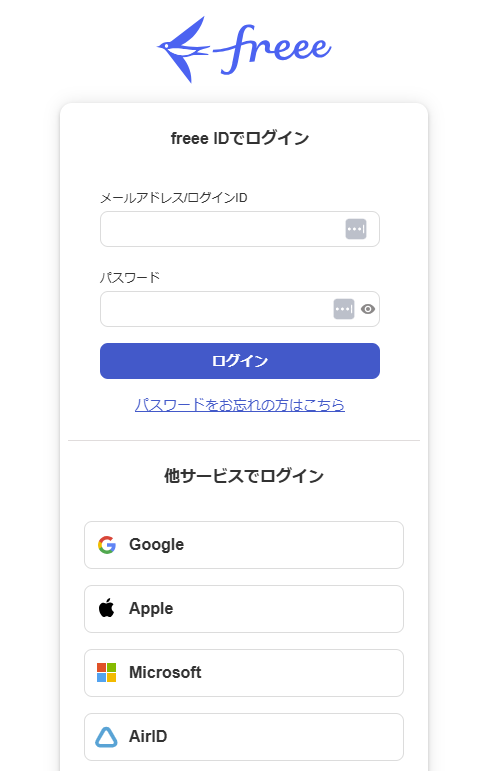
On the freee Sales login page , enter your email address and password to log in.
How to check your workspace key
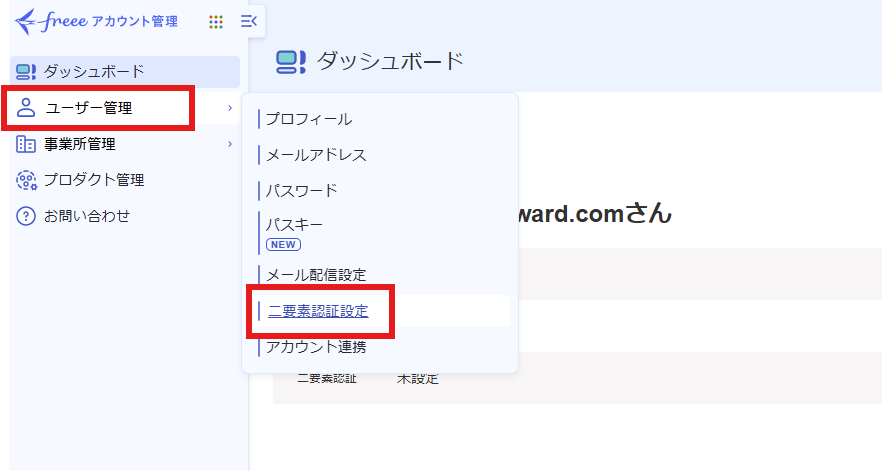
After logging in, click User Management > Two-Factor Authentication Settings .
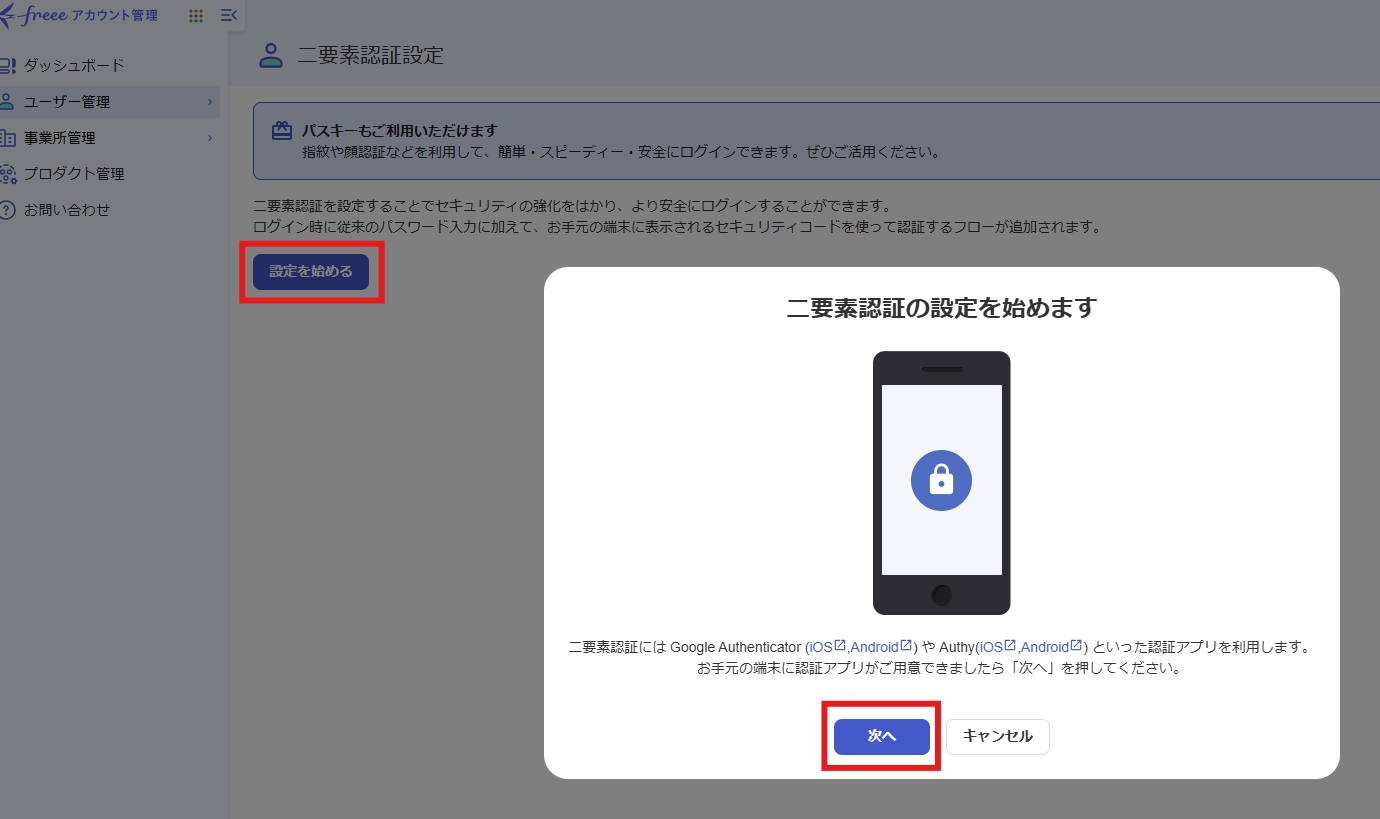
Click "Start Setup" > "Next" .
Enter the 6-digit code generated by the authentication app and click Next.
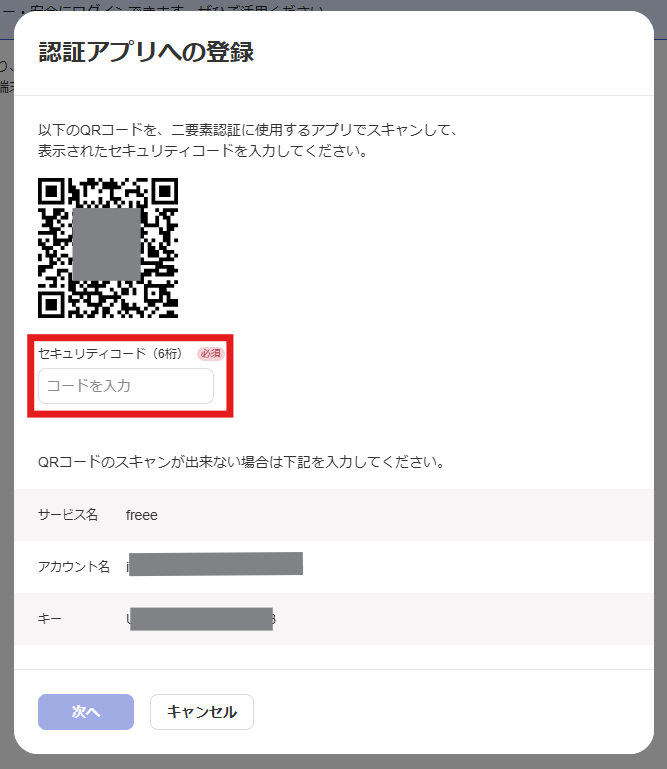
Copy the displayed workspace key.
* The workspace key is only displayed during setup.
If you have already enabled 2FA and have lost your workspace key, you will need to disable it first.
Afterward, reactivate it and generate a new workspace key.
If a backup code is displayed, please keep it safe.
Integration setup
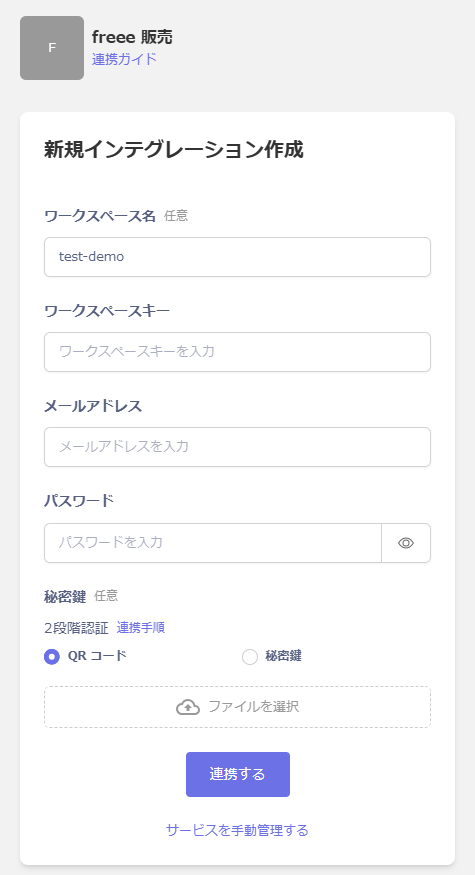
On the Money Forward Admina integration screen, search for "freee Sales" .
Enter your desired workspace name , the workspace key obtained in the previous step, and your login email address and password .
For the private key , attach an image file or enter the private key , referring to the linking procedure when two-factor authentication is enabled , and click "Link" .
Once the connection is successful, the registered user information will be displayed in the account list.
If the process does not complete successfully, please edit the status in the Integration screen and try the integration again.
If the issue persists, please contact us via chat. 🙏